Raspberry Pi hardware setup guide
This guide demonstrates how to set up Raspberry Pi hardware for development in this course. If you are in CS 1690/2670, you are required to test your work on hardware in addition to using the QEMU emulator – follow these instructions for setting up your hardware so you can use it to test.
If you are in CS 1670 only, testing on the RPi hardware is optional: you are not required to purchase hardware, and you will not be graded using it. However, you are encouraged to try this on your own time, especially if you want to build a final project that runs on real hardware.
How to get your hardware
If you are in CS 1690/2670, we will provide you with a kit containing all of the parts you will need after shopping period ends. We will post details on Edstem when we are ready to distribute kits.
Please note that all students who use course-provided hardware are required to return all hardware you have borrowed at the end of the course, or if you drop the course. Your course grade will not be assigned until your hardware is returned.
Roadmap
Setting up your hardware takes six steps:
- Checking your kit to verify you have all the components
- Preparing your microSD card with a boot image where you can place your kernel
- Loading your kernel: copy your own
kernel8.imgonto the card - Connecting your serial console to the board, so that you can receive output
- Starting a serial terminal
(e.g.,
minicomorPuTTYto actually see the output on your computer
⚠️ Before you start, we recommend completing at least Quest 2 of Project 1, which requires you to get a Pi that can print to the serial console.
If you have not reached this point yet, you can test your hardware
using a kernel8.img from the setup project, but you won’t be able to
use your own kernel.
The components
Before you begin, you will need following components, which should be included in your hardware kit:
- A Raspberry Pi 3B+
- A Raspberry Pi case (no top cover)
- A Raspberry Pi power adapter
- A USB-UART serial converter: you’ll use this to connect the RPi’s UART device to your computer
- A microSD card: to store kernel images for the RPi
- A USB-microSD reader: so that you can load kernel images onto the microSD card from your computer
- A USB type-A to USB-C adapter in case you need one
If you are creating your own hardware kit, here is a list of the parts in our kit, though you can find many compatible alternatives elsewhere (and possibly at cheaper prices). If you’re considering ordering different parts and want a second opinion on whether they’re compatible, feel free to contact the instructors.
If you’re starting from our kit, here’s what the parts should look like:
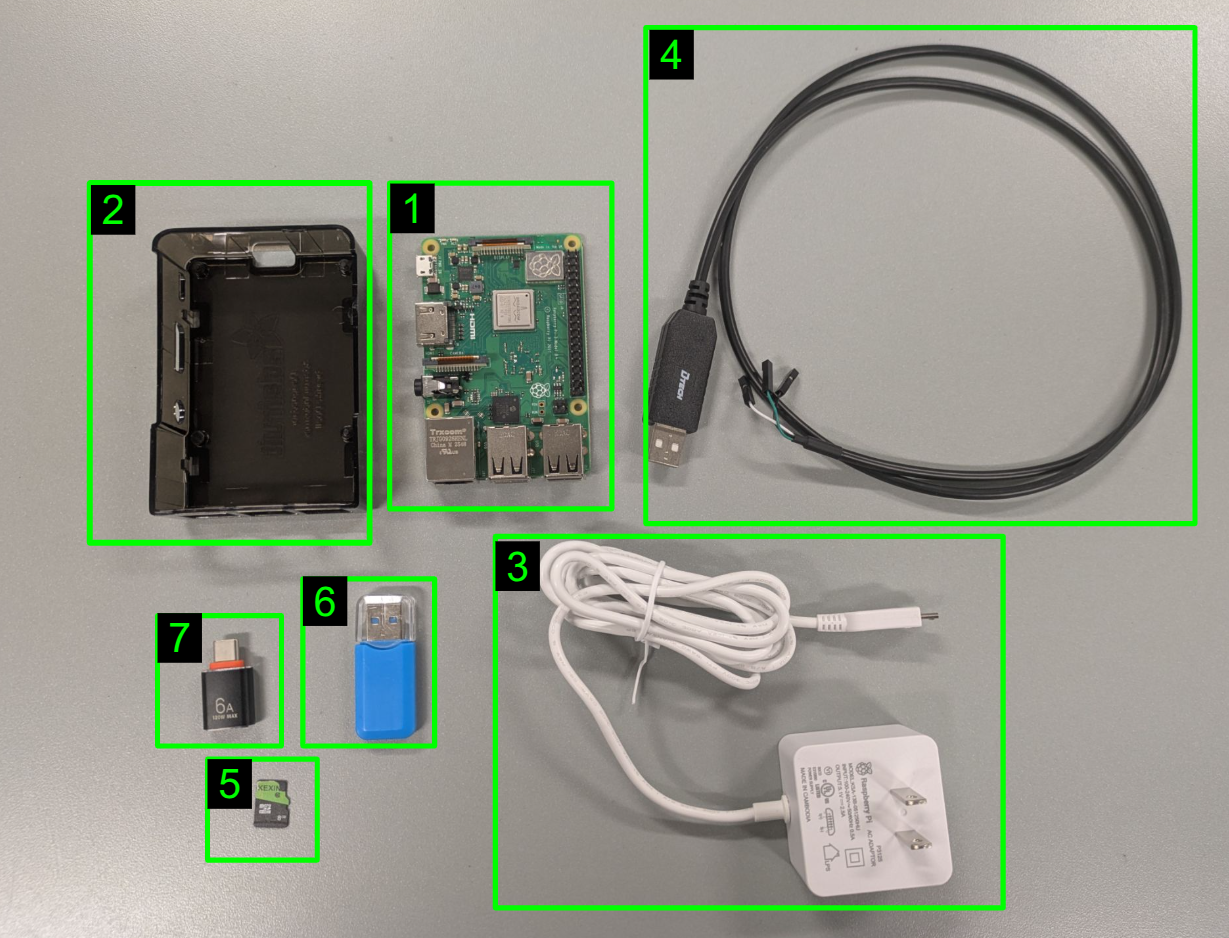
Task: Before continuing, make sure your kit contains all of the
components, which should look similar to the images shown. If you are
missing anything, please reach out to the instructors ASAP at
cs-os-instructors@brown.edu.
Installing the case
Our first step is a bit of set up for the RPi hardware itself. The Raspberry Pi ships as a bare circuit board: this is great for learning and prototyping, since it’s easy to see the device and connect things to it, but in order to use it safely over the whole semester, it needs some protection: specifically, the metal connections on the board (especially on the bottom) can easily short out if you place it down on a metal surface (e.g., your laptop), which can damage the board. Therefore, we’ve provided a case to help keep your RPi safe.
If you are using our kit, your Pi is already inside its case, so you’re all set here! Continue onto the next step. If your Pi happens to not be in a case, please expand the box below for some instructions on how to install it.
Click for instructions
To install your case:
- Unbox your RPi
- Insert the Pi into the case until it locks. We find this works most easily to start by inserting one of the long sides first, and then pressing down slightly–see the figure below for an example. It’s a tight fit, so you may need to press down with a bit of force. When it’s properly seated, the board should be level in the case, and all of the ports should line up.
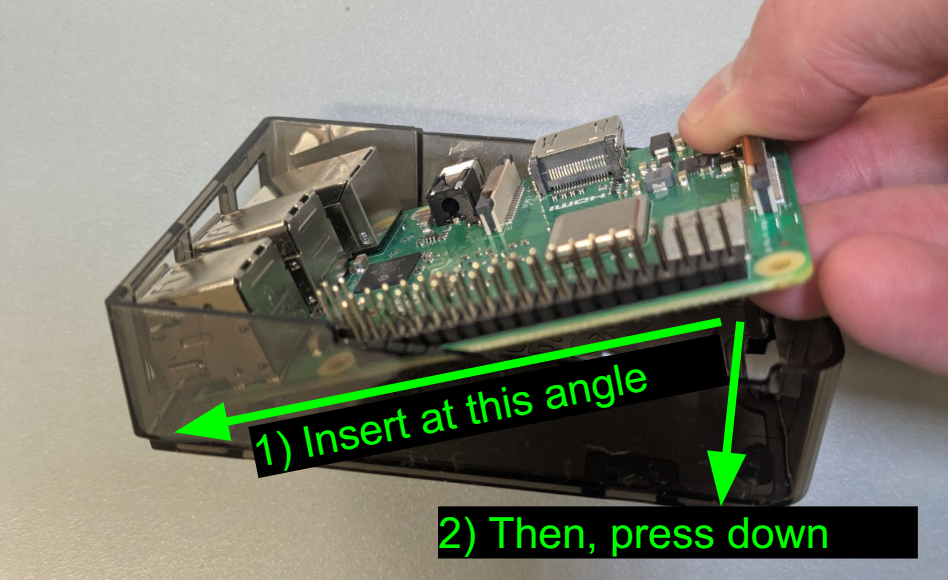
DANGER: Do not skip installing the case! Placing a bare RPi on a metal surface (e.g., a laptop) can short some of the electrical connectors, which can damage your RPi. Please be sure to use the case.
🤔 Why is there no top cover? Since we’ll be connecting wires to the GPIO pins throughout the semester, a lid would be in the way. However, the 5-sides of the case are sufficient for protecting the board from shorting out when it’s placed on a flat surface, which is enough for us.
Preparing your microSD card
Your Pi reads your kernel from the microSD card. However, in order for the Pi to read from the microSD card, and in order for us to be able to copy files to it, we need to set up the card to use the correct format, and copy some firmware files to start the boot process. In this section, we’ll use the Raspberry Pi imager to set up our microSD card.
If you used the Raspberry Pi Imager in seminar before, this step will be familiar!
To set up your SD card, do the following:
Install the Raspberry Pi imager on your host computer (not in a container) and run it.
Download our boot image to your computer. This is an image file we have pre-prepared with the firmware and bootloader files you need, as well as a hardware configuration that will work for our course.
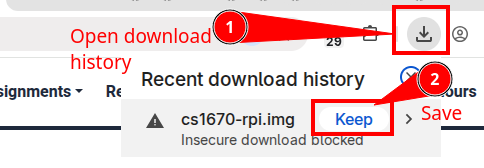
If the link doesn’t work (particularly for Chrome users), your browser may be blocking the download. To get around this:
- Right-click the link and select “Save Link As…”
- In Chrome, you may need to open your browser’s download
history and select Keep to save the file, like this:
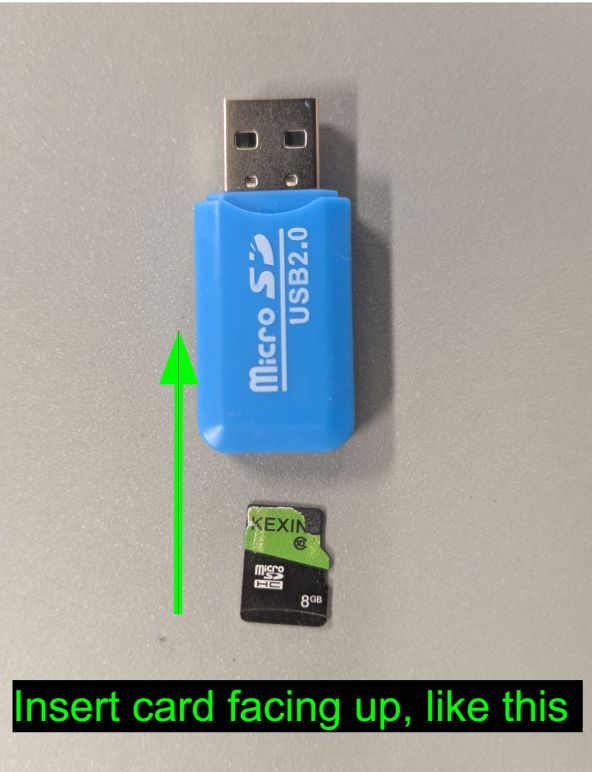
Insert the microSD card into the USB-microSD adapter. If you’re using our kit, our adapter is a bit tricky to work with: make sure you’re inserting the card label-side up (when the adapter is also label-side up)–here’s a picture of what it should look like:
Connect the USB-microSD card adapter to your computer. To do this, you may need to use the USB-USB-C adapter we’ve provided in the kit.
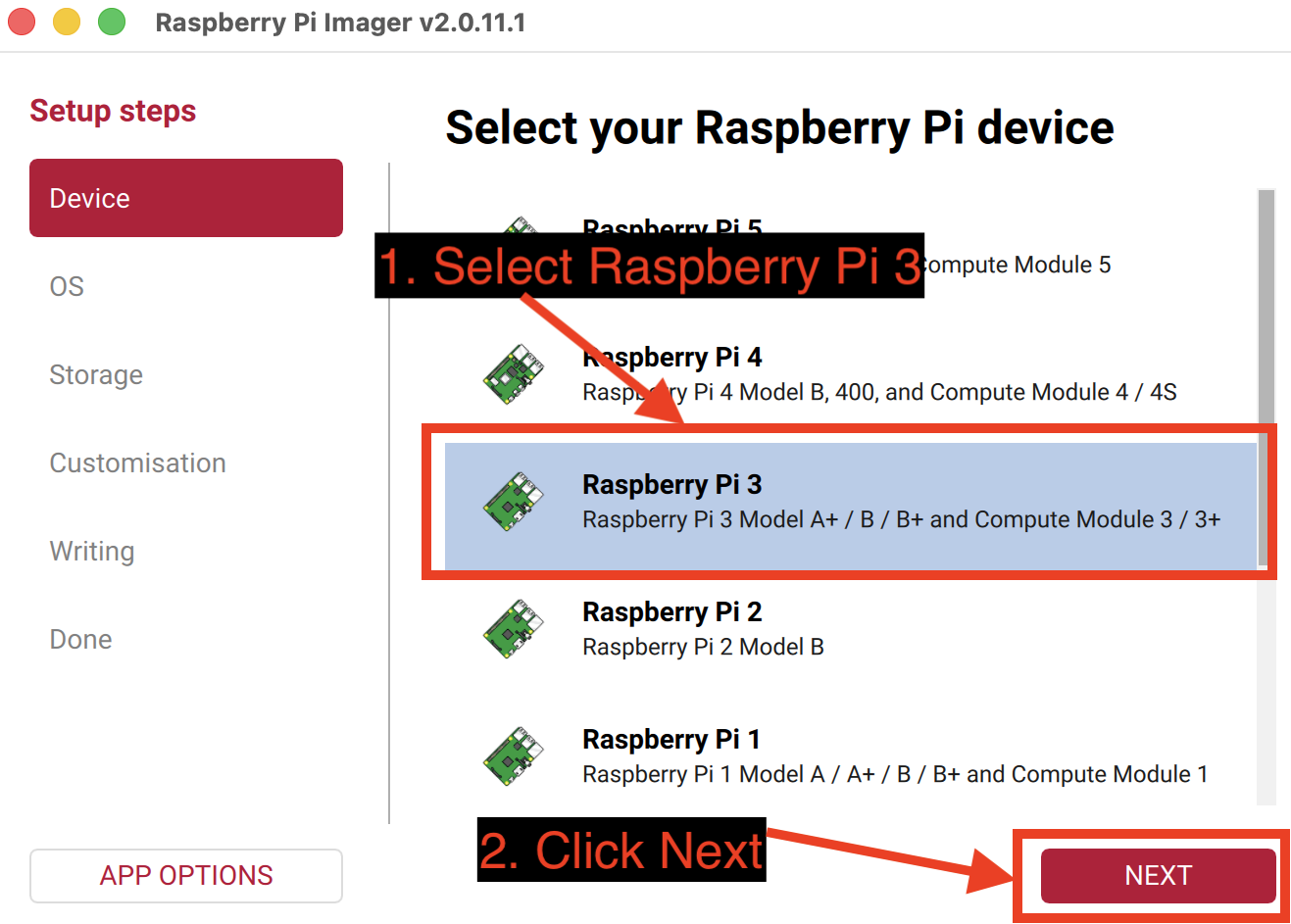
Open the Raspberry Pi Imager and click “Choose device”. Select Raspberry Pi 3 from the list, then click Next:
Click “Choose OS”. Scroll all the way to the bottom of the list and pick “Use custom”, then select the file you downloaded in step 1 (
cs1670-rpi.img):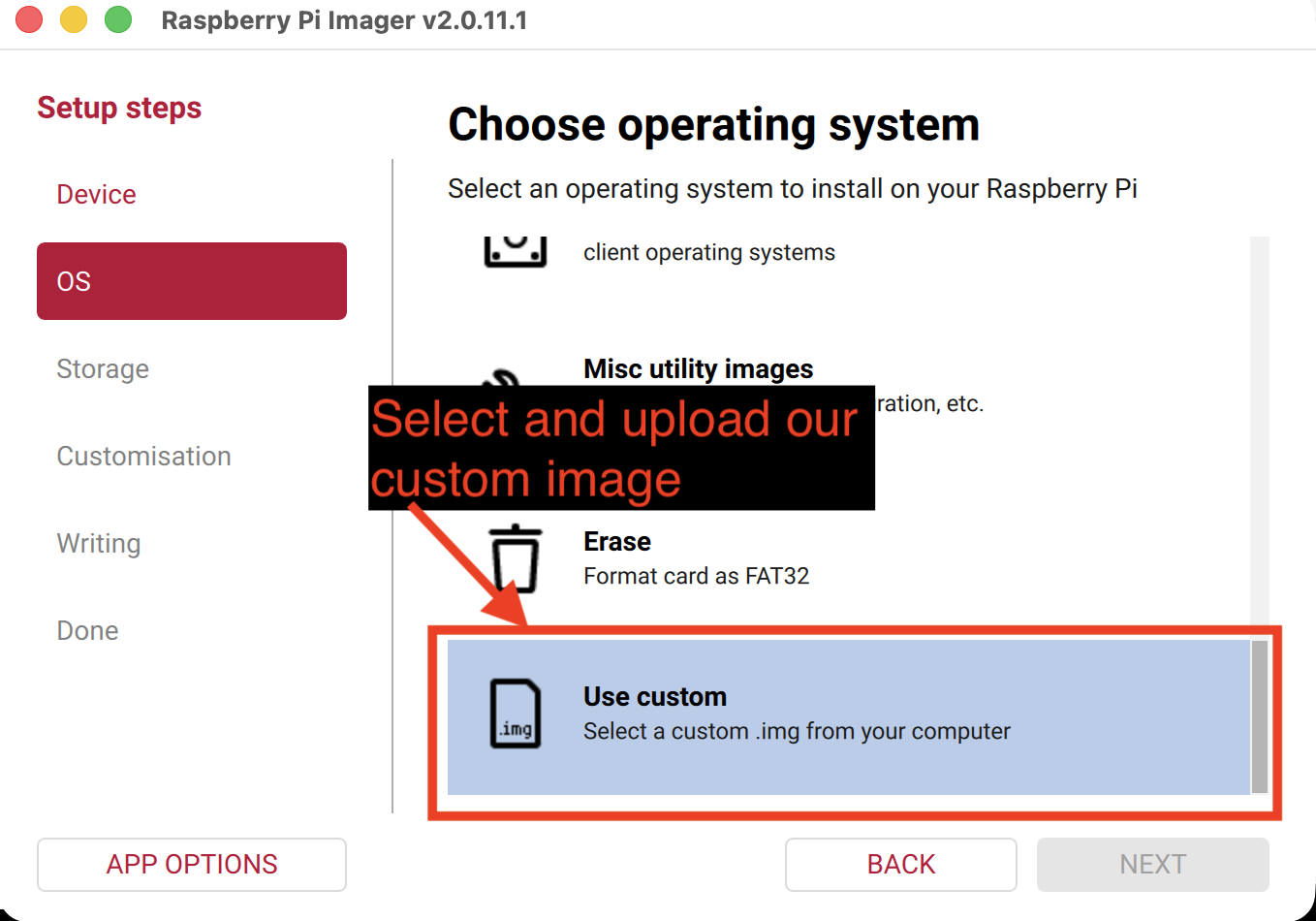
Click “Choose storage” and select your microSD card.
⚠️ DANGER: ⚠️ Writing an image to the SD card erases any data on it.
If you have other USB storage devices connected to your computer, be absolutely sure you have selected the correct disk! Our SD cards are safe to erase. If you’re unsure, we recommend unplugging any other storage devices you might have connected (e.g., flash drives) before proceeding.
Click Next to write the image. Your operating system may ask for a password–this is normal, since it’s typical to need administrator privileges to write to the disk at the low-level that the imager needs.
When the imager finishes, the SD card is ready, yay! 🎉
Important note: When the imager finishes running, or when you next connect the SD card to your computer, your operating system may complain that “This disk needs to be formatted” or “This disk was not readable by the computer” – this is normal and safe to ignore.
In addition to the boot files, our SD card image contains a separate partition (i.e., a subset of the disk) that we’ll use for Project 6, where we’ll interact with a filesystem from the Pi! We’ve set up this partition with a certain filesystem type to use for this project (called EXT2), which neither macOS or Windows can read by default. (We’ll set up your computer to do this in Project 6!)
Load your kernel
Now, we need to load your kernel onto the microSD card. Our makefiles
build your kernel as a file called kernel8.img: which is a binary
file containing the machine code for your kernel, and all of your user
programs. We call this file the kernel image – the name is a
convention for what this file should be called on the Raspberry Pi.
Didn’t we just load a .img file onto the card? Yes, but this was
a different kind of image file, which serves a different purpose:
cs1670-rpi.img: is what we call a disk image: it’s a file containing the bytes that should be copied onto the SD card to create its filesystem (i.e., the data structure that represents files and folders). You can think of this like a zip file containing all of the files needed to boot up the Pi (e.g., the firmware) and run your kernel, just in a different format.kernel8.imgis your kernel image, which contains the bytes of machine code for your kernel and its user programs. This will be another file on your SD card (after you use the Imager to set it up).
To do this:
Build your kernel using
make. This should create a filekernel8.imgin your projects directory.If you have not done so already, connect your microSD card to your computer. If you just ran the imager for the first time, disconnect and reconnect the microSD card** to make sure your OS recognizes it in the new format.
Using the instructions below, find the file on your computer and copy it to your microSD card. The instructions for how to do this will change based on your host operating system, and whether you’re using the container–select the relevant section for your system.
Find and copy your kernel to the microSD card
Find and copy kernel8.img onto your SD card. The file
kernel8.img will be located in the top-level directory in your
project repo (next to the Makefile. How you find and copy it
depends on which environment you’re using:
Container environment (macOS or Linux)
If you are using the container environment, your container’s home directory is a shared
folder so that your files are
visible in the container-home directory of the dev environment
repository you set up at the beginning of the course.
To find your kernel image:
In a file browser on your host system (or a non-container terminal), browse to the dev environment repository you set up in Project 0, and go to the
container-homedirectory (i.e.,<YOUR_DIRECTORY>/container-homein Project 0 terms).You should see your projects repository inside your
container-homedirectory, similar to what you would see in the container. Open up this directory–you should see yourkernel8.img!Now that you’ve found the file, use the instructions for the native macOS environment (next section) to copy the file onto your SD card. If you use Linux, take a look at these instructions and follow the equivalent steps for your Linux distribution (ask us if you’re unsure).
Native macOS environment
If you use the native macOS environment, you have two choices for how to copy the file: you can either copy the file directly from your terminal, or graphically using Finder.
Terminal method
To copy the file, run the following commands:
First, copy the file:
# find the name of your SD card
ls /Volumes

# Copy the file to your SD card (use the name you saw from the previous command)
# If the file SD card name has spaces, be sure to escape it:
#   e.g., cp kernel8.img /Volumes/NO\ NAME/
cp kernel8.img /Volumes/<CARD_NAME>/
If no error was printed, the copy was successful.
“Eject” the card, which tells your operating system to flush any pending writes to the card and disconnect it:
diskutil eject /Volumes/<CARD NAME>If no error was printed, the eject was successful, yay!
Visual method
Open Finder and browse to your projects repo
Copy (or drag) the
kernel8.imgonto your SD card, which should show up under the list of devices in your finder window. Be sure to copy the file in the root folder of the SD card, not a subdirectory.In Finder, click the eject button next to the card’s name. This tells your operating system to flush any pending writes to the card and disconnect it. If you don’t see a button, right click on the card name and select “Eject”.
Windows (WSL + container)
Finding files inside WSL is a bit tricky the first time you try it:
all of your WSL files live inside a separate filesystem, which is
different from your normal C: drive. To find your WSL filesystem:
Open File Explorer and find Linux in the sidebar. Expand it and pick your WSL installation (usually Ubuntu), then go to
home/<YOUR_USER>: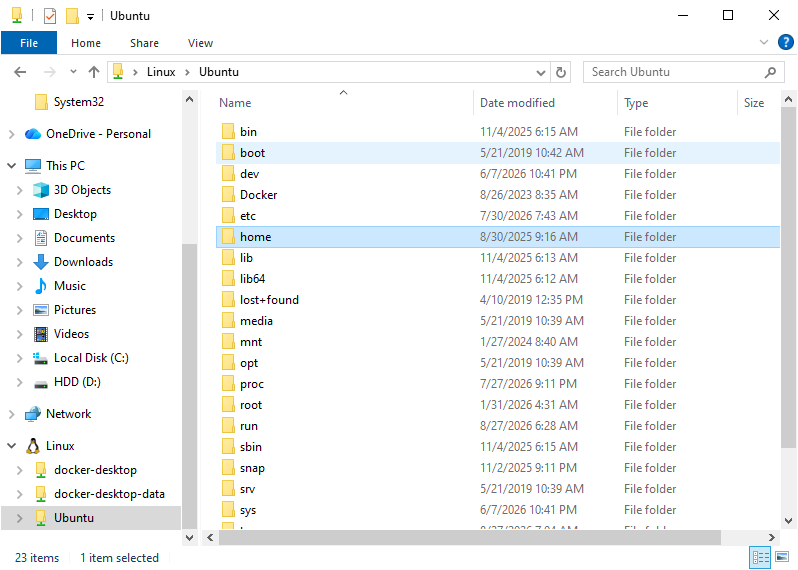
The
home/<YOUR_USER>folder is your WSL home directory–this is the directory that shows as~in your WSL terminal.From your WSL home directory, navigate into your dev environment directory, then
container-home, then yourprojectsrepository.kernel8.imgis at the top level, next to theMakefile: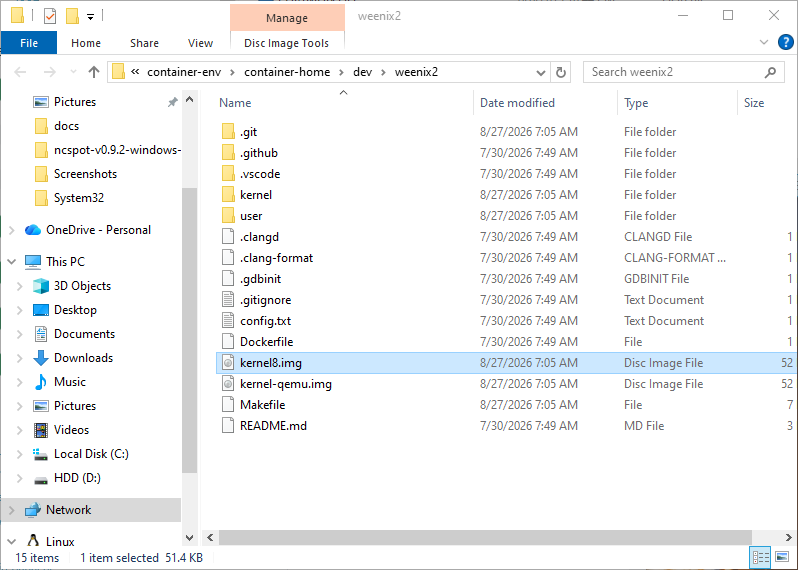
(The figure shows one of our staff repositories – yours will have a different files, but
kernel8.imgwill be in the same place.)Now that you’ve found the file (phew!), open a new file explorer window and open up your SD card, which should show up as a separate drive letter (
E:or similar), and copy the file onto the SD card.After copying the file, be sure to eject the card, which forces your operating system to flush any pending writes to the card. In Windows, there are two ways to do this:
- Right click on the drive in your File Explorer and select “Eject”, or
- Click on the “Safely remove hardware” icon in your system tray and follow the prompts
Your kernel8.img should now be copied onto your SD card, yay!
For more background on the WSL filesystem, see this section of the container guide.
⚠️ SUPER IMPORTANT: Don’t skip the eject step! The last step of each set of instructions involved “ejecting” the microSD card from your computer. This is important because operating systems buffer any changes to files in memory before flushing them to disk (CS 300 students, remember Caching I/O?).
If you remove the card before ejecting it, your kernel8.img may not
be completely copied, and won’t run properly! Therefore, save
yourself some debugging time and eject the card. 🙂
Your SD card should now be ready to run!
Insert the SD card
Now that our SD card is ready, we need to insert it into the Pi. Here’s how to do this:
Unplug your Pi from power (i.e., unplug the microUSB cable). If you have other cables connected, you can generally leave them connected.
⚠️ Only insert or remove the card while the Pi is powered off. Pulling the card out of a running Pi can corrupt the card. This will matter later, because you’ll be swapping the card every time you rebuild your kernel!
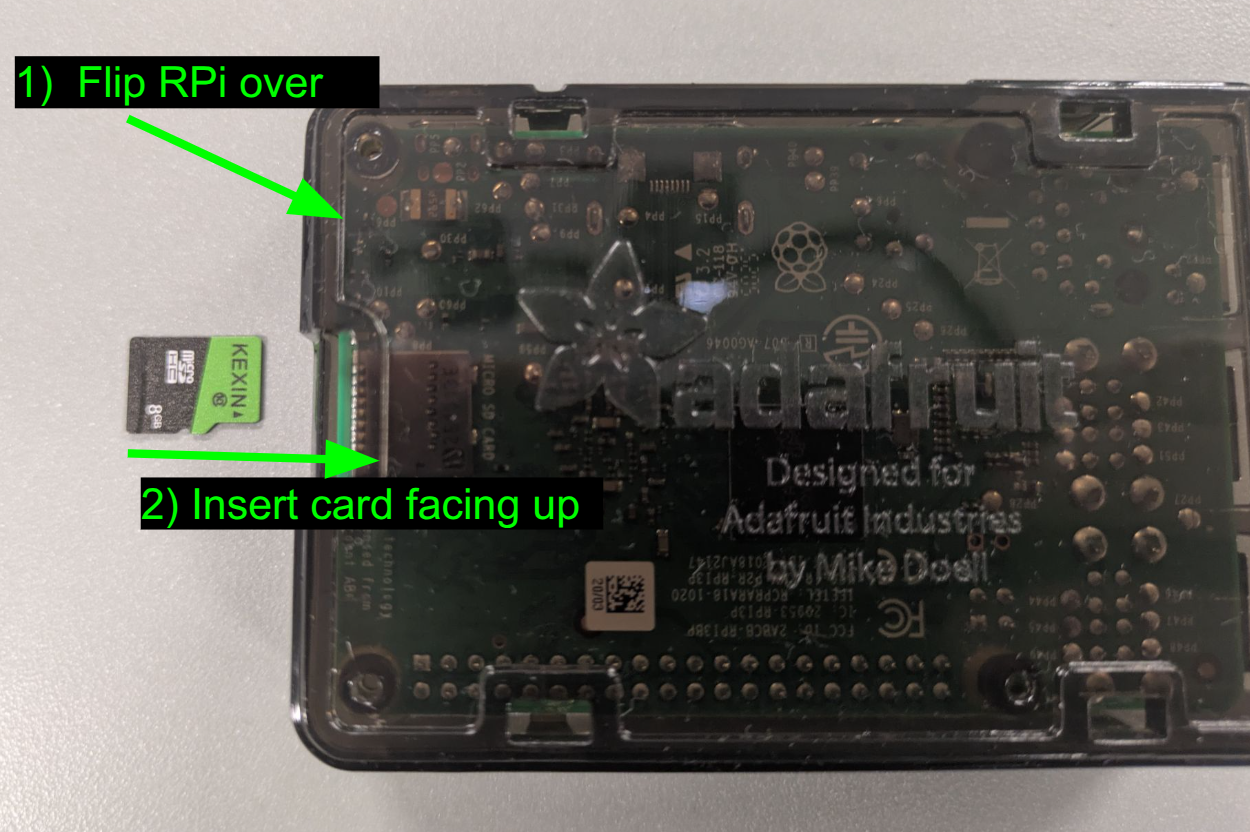
Flip the board over and slide the SD card into the slot on the bottom. The card only fits one way–don’t force it! Here’s a photo of how you should orient the card relative to the Pi:
- When you’ve inserted the card correctly, it should protrude from the Pi just slightly. Here’s a picture of a correctly-inserted card:
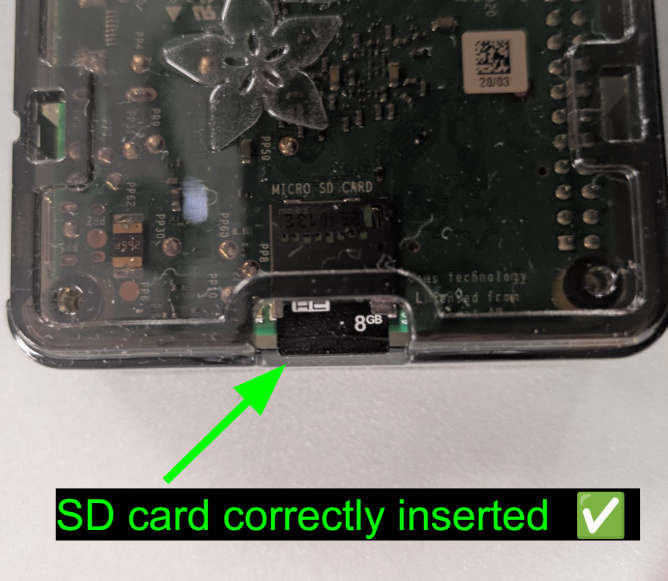
Note that the Pi’s microSD card slot may be different from others you may have used–there’s no latch or “click” to tell you the card is inserted fully.
Connecting your console (USB-UART)
Next, we need to connect to the Pi’s serial output. We learned about serial output via UART in project 1: this is the simplest way we can produce output from the Pi, and it will be our primary means of debugging.
Your computer likely doesn’t have a serial port, so we’ll use a USB-UART converter to connect the serial console to your computer. The converter contains a tiny chip that makes the UART appear as a USB device on your computer. Specifically, the UART will appear on your computer as a serial port, which is essentially a file-like object that programs on your computer can read and write to interact with the UART.
In this step, you’ll connect the USB-UART converter to your Pi and your computer, and then start a serial console application on your computer, which can interact with your Pi via the serial port.
Connecting the USB-UART to the RPi
We’ll connect the USB-UART adapter to three of the Pi’s GPIO pins, which are connected to the UART device. (Remember setting up the GPIO pins in Project 1? These are the pins!)
You can refer to sites like this one to tell you what all of the GPIO pins do. In general, each pin is mapped to one or more of the I/O peripherals on the Pi–the configuration you did in Project 1 tells the Pi which functions to use. For the UART, we are interested in connecting to pin 6, pin 8 and pin 10, which are on right edge of the board. To connect them:
Unplug your Pi from power, if it’s not unplugged already
Connect the three wires from the USB-UART adapter to the I/O pins, as shown in the figure below:
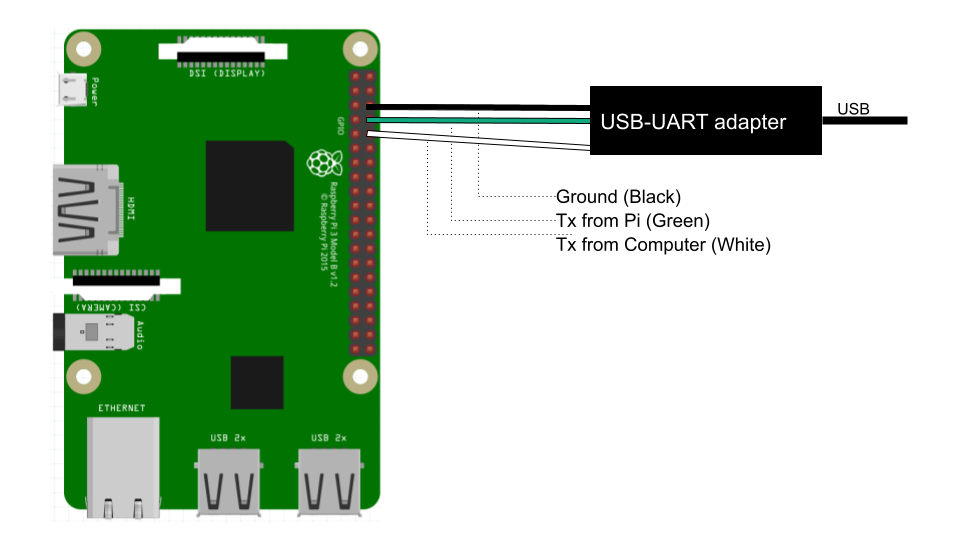
As a sneak peak for Project 1 and lectures 2-3, here’s a breakdown of what the pins mean (more info on pinout.xyz:
Cable wire Goes to Pi pin function black (GND) pin 6 Ground green (adapter RXD) pin 8 GPIO14 / TXD0 – the Pi sends here white (adapter TXD) pin 10 GPIO15 / RXD0 – the Pi receives here Before continuing double-check your connections to make sure you’ve used the correct pins! We find it helps to:
- Make sure your Pi is oriented as shown in the figure
- Count the number of pins starting from the top of the row (again matching the figure)
⚠️⚠️⚠️ DANGER: Do not connect your USB-UART adapter (or almost anything else) to pin 2 or pin 4. This pins supply power at 5V, which is used to power certain external devices. However, all of the GPIO pins on the Pi (and your USB-UART adapter) expects 3.3V at maximum, so connecting to these pins will damage your Pi! So, be sure to double-check your connections before powering on your Pi!
If you purchased your own hardware and your USB-UART adapter has a fourth (possibly red) wire, leave it unconnected. This extra wire is usually used to power the device you’re connecting to, but your Pi has its own power supply, so this will cause problems. If you’re unsure how to connect your adapter, please ask us.
Why are TX and RX crossed?
You might notice that the pins labeled TX and RX on the Pi are connected to the wires labeled RX and TX, respectively, on the USB-UART adapter. This is correct: for devices that both transmit and receive, Tx and Rx are named from the point of view of that device, so the Pi’s transmit pin must be connected to the other device’s receive pin, and vice versa. This is called a null modem configuration.
Everyone who has ever used a serial device has connected these wires backwards at least once. If you don’t get any output from your serial console, check your connections and make sure you follow the diagram, or try swapping the Tx and Rx wires.
Connecting the USB-UART to your computer
Warning: don’t plug your Pi into power yet! Some models of serial adapter need to be connected to your computer before they can handle power coming from the Pi, so be sure to follow the steps in this section before powering on your Pi!
Now we need to connect your USB-UART adapter to your computer. There are two parts to this: finding the serial port on your computer (which the adapter creates), and then connecting to it from a serial console program.
Warning: You should run everything in this section on your host system (i.e., not in a container, or WSL). Containers and WSL can’t easily connect to serial devices, so the easiest way is to access your serial port from your host system. Fortunately, all operating systems support serial ports (even yours!), so we don’t require an extra environment here.
Finding your serial device
Follow the instructions below for your host operating system, which check that your OS can see the adapter, and help you find the device name, which we’ll use in the next step!
macOS
On a mac, all serial devices have a filename in the
/devdirectory. To To find the name for your serial port, run the following command:ls /dev/tty.*You should see an entry called
/dev/tty.usbserial-A50285BIor/dev/tty.wchusbserial1420. This is the name of your serial device: copy this device name (e.g., the whole/dev/tty.usbserial-xxxxxxxxand save it for the next step!
If you don’t see a device, make sure your USB cable and adapter are connected correctly. If you continue encountering issues, please contact the course staff.
Windows
If your USB-UART is connected to your computer, disconnect it for the next step.
Open Windows’ Device Manager. You can find this from the start menu, or (pro tip) by pressing Win+X and selecting Device Manager
With the device manager open, look for a section labeled Ports (COM & LPT) (see figures below for a reference):
- If you don’t see it yet, that’s okay, proceed to the next step
- If you do this section, expand it and take note of the devices that are there. These devices are not your USB-UART, (since it’s not connected yet)
Connect your USB-UART. You should see the device manager refresh. Now, look for the Ports (COM & LPT) section again and expand it. You should see one new device compared to what you saw before, with a name like like “USB Serial port (COM4)” The
COMnumber is your serial port! Write this down to use in the next step.If you don’t see a device, or you see a yellow triangle, or it shows up under “Other devices”, Windows is missing a driver for your USB-UART:
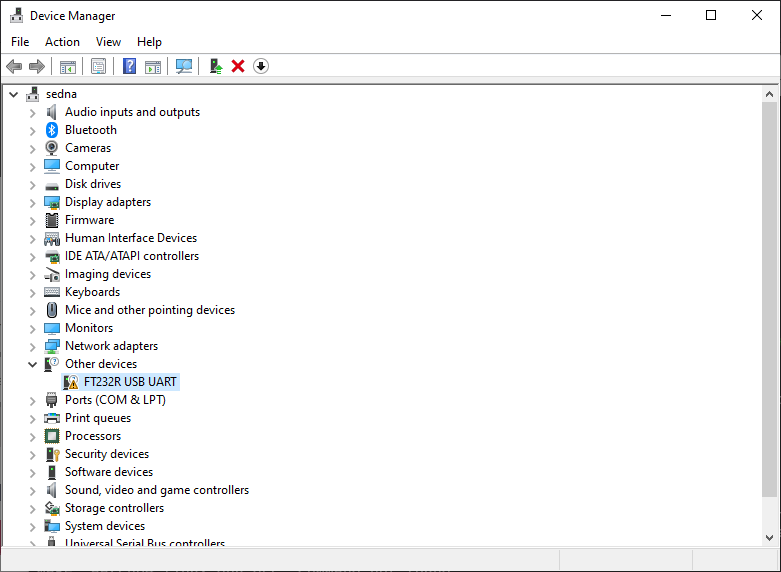
If this happens, read the following instructions to install your driver:
Click to expand
- Go to the ftdichip.com/drivers/vcp-drivers, which is the website for the manufacturer of the USB-UART chip in our adapter and download the drivers for your operating system. If you are using Windows, you likely have an x86-64 system, so you likely want to download the Desektop version for X64:
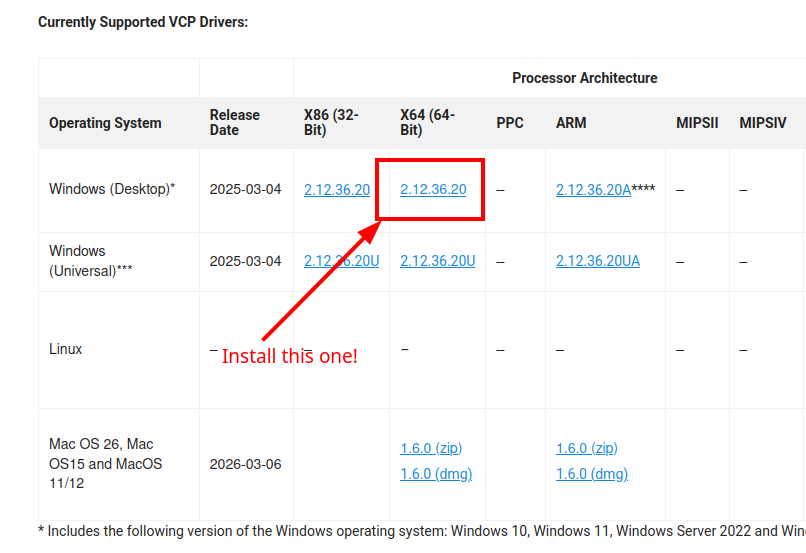
The download link will download a zip file. Unzip the file and run the installer inside–you should be able to use all of the default settings.
When the installation completes, disconnect and reconnect your USB-UART adapter, and then try to find your serial port, per the instructions above. Hopefully, you should now see your serial port! If you don’t see it, please see Troubleshooting, or otherwise come see us.
Linux
Your serial port will appear as /dev/ttyUSB0 (or ttyUSB1, …). Check
with:
ls /dev/ttyUSB*
On most distributions, serial devices are owned by the group dialout
group. To use it without sudo, you’ll need to add yourself to the
group. To do this, you can run:
sudo usermod -aG dialout $USER
… and then log out and back in for the change to take effect.
Starting your serial terminal
Now that your USB-UART adapter is connected, we can run a serial terminal to view data from the Pi! In general, serial terminal is a program that opens the serial port and can interact with it: it will display whatever data is sent from the device on the other end, and send whatever you type.
As we learned in project 1, both devices need to agree on the settings for the UART in order to communicate. Here are the settings you should use in your serial console, which match how we asked you to configure your Pi in Project 1:
| Setting | Value |
|---|---|
| Baud rate (speed) | 115200 |
| Data bits | 8 |
| Parity | None |
| Stop bits | 1 |
| Flow control | None |
These settings are one of the most common serial configurations–this one is classically called 115200 8N1, and they match the UART configuration from Project 1, Quest 2
(IBRD = 26, FBRD = 3, …).
To start your serial terminal, follow the instructions for your host operating system:
macOS and Linux: minicom
If you set up the native macOS environment in Project 0, you likely already installed our serial console program
minicom–if not, install it withbrew install minicomnow. On Linux, install it with your package manager (e.g.sudo apt install minicom) – remember that it has to run on your host, not in the container.Now, start your serial terminal by running
minicom(substituting the name of your serial port):minicom -D /dev/tty.usbserial-XXXX -b 115200 # macOS minicom -D /dev/ttyUSB0 -b 115200 # Linux
If minicom starts but you never see any output, check its flow
control setting, which defaults to on in some installations:
- Press
Ctrl-A, thenOto open the configuration menu - Choose “Serial port setup”
- Press
Funtil Hardware Flow Control reads No - Press
Enter, then choose “Exit” (not “Save setup and exit”, unless you want to make it permanent)
To quit minicom, press Ctrl-A, then X, and confirm.
Windows: PuTTY
To start your serial console:
Download PuTTY from putty.org and install it.
Start PuTTY. On the first page, set Connection type to Serial.
In the category tree on the left, click Connection > Serial, and fill in the settings as shown, substituting the
COMnumber will differ use the one you found in Device Manager: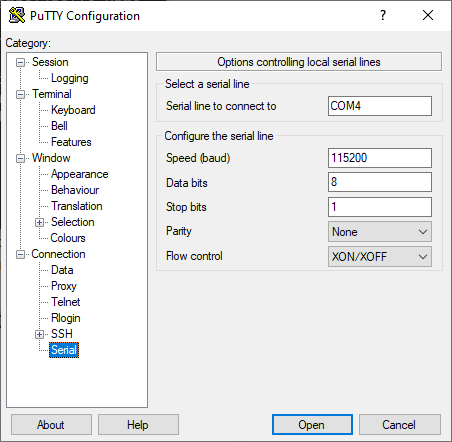
Click Open. A blank window appears: this is your serial console, it’s waiting for the Pi to say something!
Booting your RPi!
We should now have everything set up – so it’s time to start up your Pi!
Task: To boot your Pi, do the following steps in order:
- Make sure your serial console is running
- Make sure the microSD card is inserted
- Make sure your serial console is connected as described above
- Finally, plug in the Pi’s power cable and connect it to the microUSB port!
If your Pi boots successfully, you should see three things:
- The red LED (marked
PWR) should come on immediately and stay on. This means the board is powered. - The green LED (marked
ACT) will flicker when the microSD card is being read - In 1-2 seconds, your kernel’s output should appear in your terminal! If you’ve completed Project 1, you should se eoutput matching what you expect for the project!
🎉 If you see your kernel’s output, you’re all set! You just booted an operating system you made on real hardware. Take a moment to appreciate this! 😎
If you see nothing, or you see garbage characters, don’t panic: instead, see the Troubleshooting section, which describes common issues and how to check them.
When you are done
When you are done please fill out this form to let us know about your hardware setup experience, and any issues you encountered. This will help us keep track of everyone using hardware, and help us collect feedback to improve our instructions for future years!
Where to go from here: how to keep writing code
Fortunately, you don’t need to redo all of these steps each time you need to load new code onto the Pi. Now that you’ve completed the initial setup, here’s how you’d try out new code on your Pi:
- Edit your code and run
makeas usual - Unplug the Pi’s power.
- Remove the microSD card, put it in the reader, and copy the new
kernel8.imgonto the card.- If you were using your USB-C adapter for the serial console and now need it for the reader, quit your serial terminal before unplugging the cable. (If you use
minicom, press the escape key (Ctrl+AorOption-Z) and press X, then select Yes)
- If you were using your USB-C adapter for the serial console and now need it for the reader, quit your serial terminal before unplugging the cable. (If you use
- Eject the card. (Don’t skip this!)
- Re-insert the microSD card in the Pi and power it back on.
As you test, you can generally leave your serial terminal running the whole time: when the Pi resets, its output simply appears again in the same window.
Yes, this is tedious. 😬 If you find yourself loading new code onto your Pi more than a few times an hour, consider:
- We recommend debugging issues in QEMU first, where you can test more quickly and use GDB. This can save you a lot of time!
- Consider running your code using the “Run with hardware” button on the grading server. If the Pi isn’t in use by anyone else, this may be faster.
Later in the semester, we may be able to release a method to load a new kernel on your Pi via UART (similar to what the grading server does), but we are still working out some reliability issues on the USB-UART adapters in our kits (which lack a CTS wire to provide flow control).
Troubleshooting
If you encounter issues, take a look at the recommendations in this section for a guidance on how to get started debugging. If you’re stuck, please feel free to post on Edstem or come see us during office hours–we can help!
🤖 AI use: allowed and encouraged. We encourage you to use AI to help debug hardware issues.
However: most of the Raspberry Pi material online is about running
Raspberry Pi OS (a Linux distribution), so AI models will often
suggest things like editing /boot/cmdline.txt, enabling
dtoverlay=disable-bt, or logging in over SSH to debug problems.
Since we’re running code on bare-metal (and thus, aren’t using Linux
or any other well-known operating system)–none of this applies to us.
If a suggestion assumes an OS is already running on the Pi, then it’s
not relevant for us.
Nothing appears on the console at all
Work through these in order:
Is the red
PWRLED on? If not, the board isn’t getting power: try a different outlet, and make sure you’re using the supplied power adapter. (Note: ordinary microUSB chargers, or a USB cable from your computer generally can’t supply enough port for a Raspberry Pi.)Is your terminal connected to the right device? Unplug the USB cable, re-run
ls /dev/tty.*(macOS/Linux) or check Device Manager (Windows), plug it back in, and confirm which entry appears/disappears.Are TX and RX crossed correctly? This is the single most common mistake. Swap the green and white wires and try again.
Is
kernel8.imgactually on the card? Put the card back in the reader and look. If it’s missing or 0 bytes, you probably pulled the card before the write was flushed – copy it again and eject properly this time.Isolate hardware from software by testing your kernel on the grading server using the “Run with hardware button first”
My kernel works in QEMU but prints nothing on real hardware
This is the classic hardware-vs-emulator mismatch, and it almost always comes down to GPIO configuration.
QEMU does not emulate the GPIO pin multiplexer, so a UART driver that
never touches GPFSEL1 works perfectly in the emulator. On a real
Pi, the UART’s signals only reach the physical pins if you have
configured GPIO14 and GPIO15 for ALT0 (and GPIO16 for ALT3, if
you enable CTS). Project 1 warns about exactly
this – if you skipped gpio_init(), or
guessed at the register offsets rather than looking them up in the
manual, this is where it shows up.
Check your gpio_init() against the BCM2835 manual: the GPFSEL1
function-select bits for pins 14, 15, and 16, and the
GPPUD/GPPUDCLK0 sequence.
This can occur for one of two reasons:
- Make sure you are initializing your GPIO pins (
gpio_init) using the code we provided in Project 1, Quest 2. If you wrote your own version of this code, make sure that it’s functionally equivalent to our version. QEMU ignores GPIO settings, so your UART will work successfully in QEMU even if the GPIO configuration is incorrect or missing. - Check your Pi’s UART settings match our expect baud rate and data size. To help you check this, try the “UART settings test” on the grading server, which will examine your device’s UART registers and print out the settings.
I see garbage characters (e.g. ~@?})
If you are reading garbage data, this means that the two ends disagree about the baud rate of the connection, so your terminal is reading the bits at the wrong moments. Check that…
- Your terminal is set to 115200 baud
- Your UART divisors are correct: your settings should be (
IBRD= 26 andFBRD= 3) enable_uart=1is inconfig.txton the card. Without it the firmware may leave the UART clock at a different frequency, and all your divisor arithmetic will be off.
macOS: no new /dev/tty.* device appears
- Try a different USB port, and try the direct port rather than a hub or dock.
- If your kit’s USB-C adapter is in the chain, try removing it (or swapping it) – cheap adapters are a surprisingly common culprit.
- Run
ls /dev/tty.*with the cable unplugged, then again plugged in, and compare – it’s easy to miss a new entry in a long list. - Some adapter chips (notably CH340/CH341 clones) may need a driver on older macOS versions. Check what your cable uses, and let us know on Edstem if you’re stuck–we can help identify it.
Windows: no COM port appears
Look in Device Manager under Other devices for an entry with a yellow warning triangle – that means Windows sees the hardware but has no driver. Install the VCP drivers as described above, then unplug and replug the cable.
Also make sure you are looking at Device Manager on Windows itself and not trying to find the device inside WSL, which cannot see it.
The Imager can't see my SD card
- Make sure the card is in the reader and the reader is in your computer (it’s easy to plug in an empty reader).
- Try a different USB port.
- Check for a physical write-protect switch on your card adapter, if it has one.
- Windows/macOS may need to be told to allow the Imager access to removable media the first time – watch for a permission prompt.